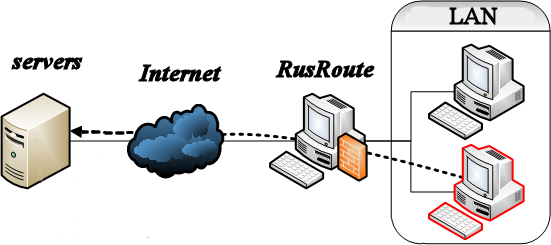
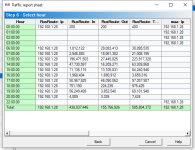
RusRoute firewall research project is flexible software IPv4 and IPv6 router and firewall, Internet gateway for Windows, it is the ideal solution for making Internet gateway for local area network (LAN) of small company, the users' traffic encountering and restricting, protection against of network attacks with functions of NAT, redirect, VPN server/client for corporate remote access, transparent proxy with port numbers saving, LAN to VPN Bridge, DHCP servers, FTP servers, multicast UDP proxies, HTTP caches, HTTP to HTTP proxy converter, captive portal feature, timed action and Splitters for rules, with advanced routing possibilities. RusRoute can also be used in firewall mode, not as a router, to protect game servers, for example.
The next functions are not supported: Captive Portal for https connections, multicast routing, https caching, content filtering, IPv6 VPN, VPN multicast.
Help for programm "RusRoute" (routing firewall, Internet gateway)
RusRoute firewall 3.4.3
Description of the fast start for the program is here
Major changes in recent versions related to IPv6 that may not be obvious:
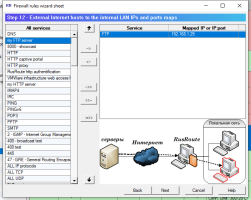
In places in the GUI configurator where only one address can be specified (for example, in the "Special" rule settings or in the "Rule Generator Wizard" - "Port Mapping"), if you need to specify both an IPv4 and IPv6 address in a single rule, separate them with a space. Depending on the packet protocol type, one value or the other will be used.
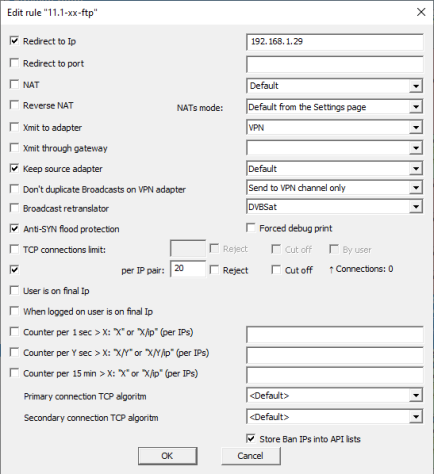
Redirection to IP addresses 127.0.0.2 and ::2 redirect the connection to the IP address source. In conjunction with NAT or a special NAT, this can be used to "turn back" RDP, SSH, VNC, and FTP connections to an attacker's computer (there are no such recommendations in the RFC) attempting to brute-force the password for these services, leaving you with normal access from a whitelisted IP or authorized IP.
If you need to use a configuration with IPv4 NAT and IPv6 without NAT, the simplest way is to configure "Default NAT modes" on the "Settings" page, leaving the rules as for a regular NAT.
To re-enable the regular (non-test) Windows mode, you may need to uninstall the RusRoute firewall and all unsigned third-party drivers, run the command
bcdedit.exe -set TESTSIGNING OFF
and reboot the PC.
As of June 2022, if you do not disable verification signatures, the RusRoute firewall can still work with the older version of the signed driver, but in some cases the older driver does not work correctly.
Windows 7 clients cannot obtain IPv6 addresses and IPv6 routes from a PC running the RusRoute firewall with DHCPv6+RA.
RusRoute (routing firewall, Internet gateway) is an ideal solution for organizing Internet access for an organization's local network, counting and limiting user traffic, protecting against network attacks, with NAT, redirect, VPN for organizing corporate remote access, proxy, LAN to VPN bridge, HTTP caching, DHCP servers, FTP servers, UDP multicast proxy, time-out and rule splitters.
RusRoute consists of three parts: a driver that intercepts Ethernet and IP packets (Internet Protocol versions 4 and 6) and transmits these packets for processing to the service - the firewall module, and the GUI user interface application for displaying the firewall status, monitoring connections, and changing its settings.
The firewall module is the most intelligent part of the software product, providing communication (routing) of packets between networks with additional functions, such as
traffic routing
IP address translation (NAT - Network Address Translation) and port numbers
redirection
shapers
VPN (corporate virtual private network)
proxy
LAN bridge to VPN
HTTP caching
DHCP/RA servers
FTP servers
UDP multicast proxy
network protocol packet filtering according to specified rules and time, with outgoing route branching (splitters)
user authorization, authentication, accounting, and billing (logging into the RusRoute system, granting users rights to use network resources, maintaining network traffic usage statistics, and calculating the funds spent for each user).
2. System requirements.
The program runs on Windows 10/11 and some server operating systems of Windows 10 and later, 64-bit. Earlier versions of Windows (starting with Windows 7) are not supported, as self-signed drivers for these systems are not developed, and their functionality is limited. Minimum computer requirements: 4 cores CPU, 4 GB RAM, 1 x Ethernet 10/100 Mbps network, internet connection via the same or a different ADSL, ETTH, or other Ethernet-compatible controller. Recommended system requirements: Intel I7-7700K 4.2 GHz, 8 GB RAM, Gigabit Ethernet for LAN, 100/1000 Mbps Ethernet adapter for internet connection, Windows 10 x64.
Computer requirements increase with the number of active users and network speed requirements.
3. Installing the program.
To install the program, run the installer, read the license agreement, and follow the installer instructions.
The installer prompts you to replace files with new ones if you are installing over an existing version. Updating over a previous version does not reinstall the driver. After unpacking the necessary files, a software module will launch, which will install the required driver into the operating system and the firewall service. You don't need to install a VPN adapter if you don't plan to set up a secure network between two or more PCs with the RusRoute firewall.
After rebooting, generate initial firewall rules and enable it in Settings. If the network isn't blocked, the initial setup was successful. Go to the "About" tab and enter your registration information (username, email address, and program serial number). Then, from the context menu of the list containing registration information (called by right-clicking), select "Check key and generate activation request." If the key is entered correctly, the message "Key correct" will be displayed in the list. You can then copy the activation request to the clipboard and send it by email to the support service address support@rusroute.com or submit an activation request later.
For the firewall to function correctly, you may need administrator rights (this should be taken into account when manually restarting the firewall).
The pre-installed firewall configuration is not suitable for For end-user use, RusRoute starts in disabled mode to allow remote installation, passing all network packets through the driver module (the firewall is disabled in the "Settings" window). Configuration for a specific application involves using the rule generator wizard, editing lists and rules, adding users, changing billing schemes, and making other changes (optional), and enabling the firewall in the "Settings" window.
The RusRoute firewall doesn't work with the standard Windows firewall, so the installation program disables it.
4. Activation of the program.
4.1. What does activating the demo version of the program provide?
Activating the demo version of the program allows you to use the program to evaluate its suitability for your purposes for 15 days instead of 7. However, in this case, activation must be completed before the 7-day trial period expires.
4.2. What does activating the full version of the program provide?
Activating the full version of the program actually enables simultaneous operation for the number of users for whom the program was purchased (which is also determined by the serial number issued after purchasing the program).
4.3. Activation.
To activate the program, first send an activation request to support@rusroute.com. The activation request is generated by RusRoute when checking the key in the "About" tab. Copy the email with the activation code received from support to the clipboard and paste it through the context menu of the same "About" tab. Then select "Check key and activation code." If successful, a corresponding message and the number of users available in the system will be displayed in the list.
5. Licensing Rules.
The license is determined by the serial number and activation code. The license type is determined by the number of users simultaneously working in the system. A user's unique identity is determined by the IP address from which they work. Therefore, by the number of users, we mean the number of authorized IP addresses in the system. Important: If you log in to the RusRoute firewall computer from a local address of 127.0.0.1 or ::1 (via the web interface), then one firewall user actually corresponds to multiple IP addresses (the IP addresses of all network cards on the computer). This should be taken into account when determining the number of users for the purchased program. Similarly, if automatic authorization for a user working on the RusRoute firewall computer is configured using the firewall address, then any activity on each firewall IP address automatically logs the user in from that address, unless that address is already in use. Typically, the number of local firewall IP addresses is small (no more than 3-8). Also, the maximum number of DHCP clients supported is limited by the number of users (IP addresses) of the license.
END USER LICENCE AGREEMENT The present licence agreement is a public offer and consists of all main conditions of Your (hereinafter referred to as «User») use of “RusRoute firewall” program (hereinafter referred to as «Program») for computer.
The Author - citizen of the Russian Federation, Moiseenko Andrey Alekseevitch (hereinafter referred to as «Right holder»), in accordance with current agreement, is the holder of exclusive material copyright for “RusRoute firewall” program, including User manual for it in hardcopy and/or electronic copy and is obligated to allow User (direct or through authorized third hand) unexceptional right for using Program, with restrictions of installation rights and starting Program in accordance of set up by current rules and conditions of Licence agreement (the simple unexceptional licence). Order of offer acceptance (Licence agreement)
The current offer (licence agreement) is considered to be accepted by User through the following conditions:
1) Through clicking the «Accept» button while setting up the Program and pressing «Install», the User agrees unquestionably to User agreement with current agreement rules. 2) Through order, payment or receive by User of unexceptional rights for using Program on the currently offered confitions (agreement) from Rightholder or authorized third hand people it means unquestioning the User agreement with conditions of current licence agreement.
Transferring order and costs of unexceptional rights
In accordance to current Licence agreement, User must give in 30 days from offer acceptance from Rightholder (in direct way of through authorized third hand people) unexceptional rights for using Program. The moment of transferring to User unexceptional rights is considered the moment of Rightholder's (or third hand people making right transfer) hand on a document in accordance statement. The user must pay a fixed fee for rights; the amount of fee is defined by conditions of Licence agreement with the party, agreeing upon rights transfer. In case of User cancellation (not to giving rights in the specified time) the current Licence agreement is considered not to have ended.
Program rules
User has the right to use Program in the any country of world in accordance with conditions of current Licence agreement as long as usage is in accordance with the following rules:
1. Recompilation and/or modification of Program is prohibited. 2. To lease or rent, temporary use of Program for others is prohibited. 3. To split Program by parts to use it on different computers is prohibited. 4. Using the Program with the purpose to create malicious program data or codes is strictly prohibited. 5. Using the Program in a way that conflicts with the laws of the Russian Federation is strictly prohibited.
User’s rights To use Program for evaluation purpose in 7 days from its first start (install). To Make copy of program under condition that the copy is aimed for archiving goals and to replace legally obtained distribution if the original is lost, removed, or stand unsuitable for using. The copy mentioned in this paragraph cannot be used for other purposes and must be removed if the using of Program by User ceases to be rightful.
Rights disclaimer Right holder does not guarantee the usability of Program while breaking conditions described in User manual, and in the case of violation of User the conditions of current Licence agreement. User takes upon themselves the risk of accordance of Program by his wishes and needs, as soon as risk of accordance the conditions and value of giving rights by his wishes and needs. Right holder and/or his pairs are not to account for any damage or loss of profit, independently of appearance causes, (including, and not restricted by this, special, fortuitous, incidental or indirect damage, profit loss, interrupting commercial or production activity, business information loss, negligence, or any other loss), that appears when using Program or impossibility to use it.
Final rules Validity period of current offer conditions (Licence agreement) are from June 20, 2020, to June 20, 2030. In case of infringement on the author's rights for the Program, the violator is solely responsible for conduct that could constitute a criminal offense, give rise to civil liability and administrative responsibility or otherwise violate any applicable law or regulation of the Russian Federation or any other local, state, national or international laws.
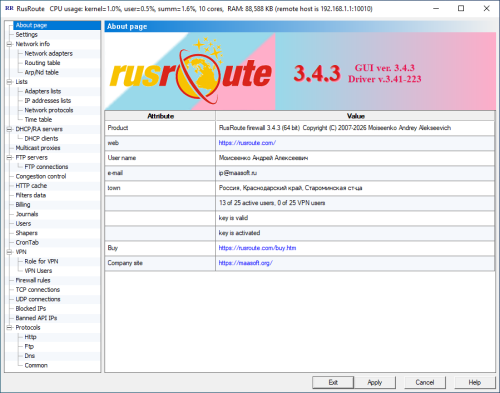
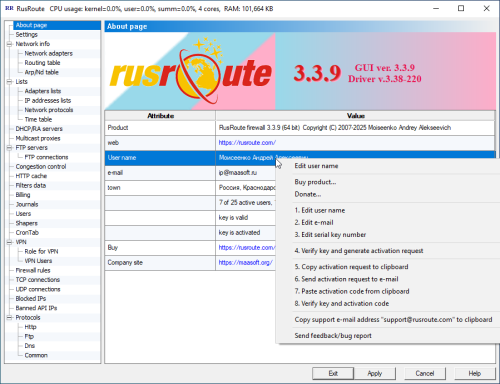
In this window, you can see the product name, version, copyright, program website, user registration information (name, email address, serial number), program mode, number of active users, and the verification status of the serial number and activation code.
You can double-click or press F2 to change user registration information.
6.2. The "Settings" window.
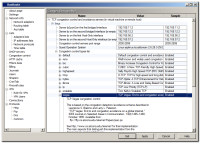
Settings - 1Settings - 2Settings - 3
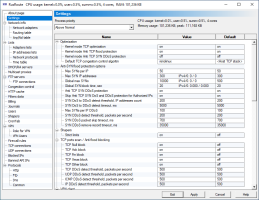
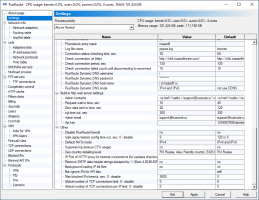
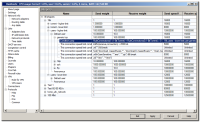
In this window, you can see global program settings, such as process priority, kernel-level TCP optimization, anti-TCP flood and anti-SYN DDoS protection, the default TCP congestion avoidance algorithm (experimental, not used), Anti-SYN flood settings, shaper options (not used), TCP port scanning blocking / anti-flood, specific VPN client settings, and other settings. This window, like the header, also displays the amount of memory used by the RusRoute firewall service process.
Enabling TCP optimization at the kernel level can significantly reduce the program's CPU usage by moving some of the processing of established TCP connections from user mode to the operating system kernel. Anti-TCP flood protection also works well at the kernel level, while anti-TCP SYN protection is best used at the user level, as it Fragmented packets and packets with complex IPv6 headers are not analyzed at the kernel level.
Using strict TCP shaper limits allowed for strict speed limits, unlike the non-strict mode, where RusRoute attempted to use the entire specified bandwidth of root shapers for subshapers.
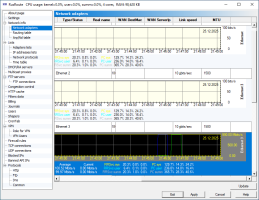
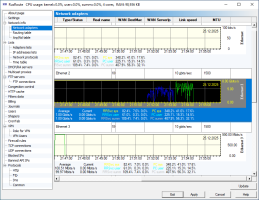
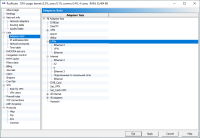
Here you see a list of the operating system's network adapters, both present, inactive, and removed, with their characteristics. Network adapters also include phone book entries.
Adapter properties include parameters such as name (user-defined, from network environment properties), MAC address, IP address, subnet mask, type/status, valid name, MAC address of the other end (for WAN connections), and IP address of the server (for WAN connections). WAN6 connections are not yet supported in version 2.5.4.
If the serial key is invalid or expired, or the driver is not installed correctly, the adapter name is determined with an error, preventing it from being used.
The list of adapters can be updated, for example, if you rename one of them.
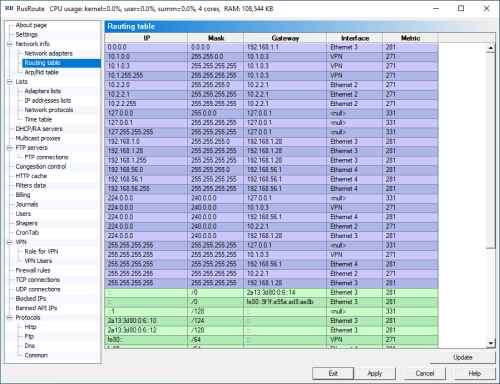
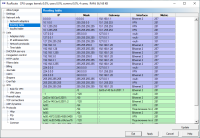
The standard operating system routing table. Presented as a list with the following fields: IP address, mask, gateway, interface (adapter name, for the local loopback - "null nic"), and metric. Both IPv4 and IPv6 routing tables are displayed.
This information, as in the previous window, can be updated manually by clicking the "Update" button. This is usually not necessary, since operating systems starting with Windows XP send notifications to programs about routing table changes.
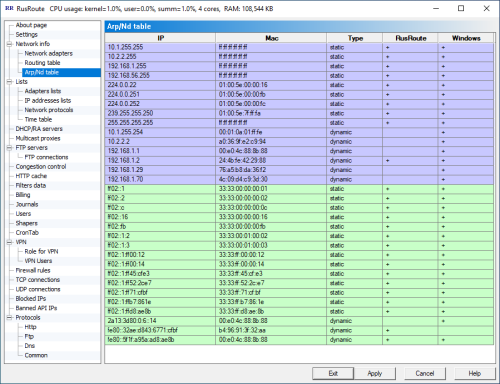
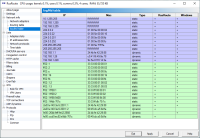
This window displays the Arp (Address Resolution Protocol) table for IPv4, also known as the MAC address table, and the ND (Neighbor Discovery) table for IPv6. It displays dynamic and static entries mapping IP addresses to MAC addresses of network cards. RusRoute maintains its own Arp/ND table, combining it with the Windows Arp/ND table. Accordingly, in the last two columns of the list in this window, you can see whether the entry is in the RusRoute and/or Windows tables.
To protect against network IP spoofing attacks within the local network, you can add static ARP entries to the table. This is easily done by creating a *.bat file with lines like arp -s ...... and specifying that this file should run when Windows boots. The contents of the .bat file can be copied to the clipboard from this window by right-clicking the corresponding entry and selecting the appropriate menu item. For more information on the arp command, see the Windows documentation and run the command arp /? from the command line.
6.4. "Lists" group of windows.
Here are the lists used to define firewall rules. Each list can be sorted by certain fields by clicking the list header button.
6.4.1. Adapter lists.
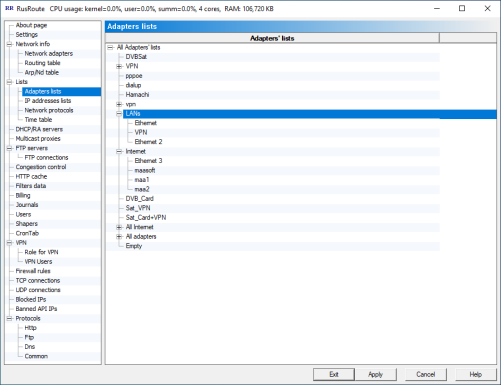
Adapters lists Here you can create and edit adapter lists. To do this, right-click on existing elements and use the drop-down context menu.
6.4.2. IP address lists.
IP addresses listsIPs list element - 1IPs list element - 2
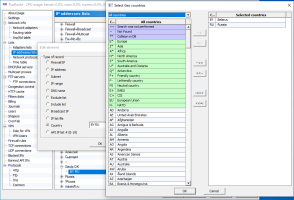
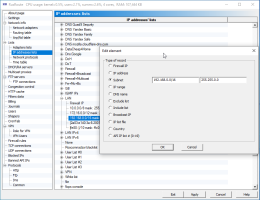
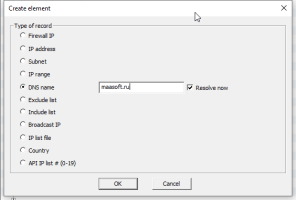
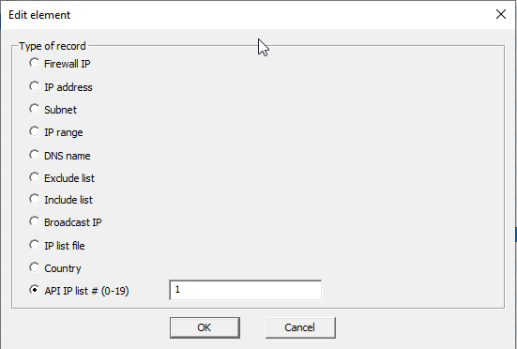
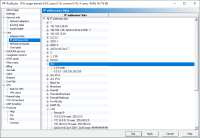
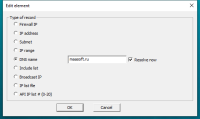
Here you can create and edit IP address lists. To do this, right-click on existing elements and a drop-down context menu and a dialog box for specifying the element type and value appear. The elements of each list can be of the following types:
"Firewall IP" - any of the firewall's IP addresses,
"IP address" - a manually specified address,
"Subnet" - a subnet specified by an IP address and mask,
"IP Address Range" - the range of IP addresses from the start to the end (arithmetic comparison is used),
"DNS Name" - the host's domain name, for example, "maasoft.ru". The firewall works directly with IP addresses, so it is important to determine the IP address(es) to work with based on the domain name. If you don't do this immediately by unchecking the "Detect immediately" box, you can then determine the IP addresses of all domain names by selecting the corresponding item in the context menu of the main window.
"Exclude list" - An IP address is considered non-compliant if it is on the exclude list.
"Include list" - Supplements the list with another list.
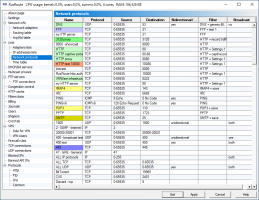
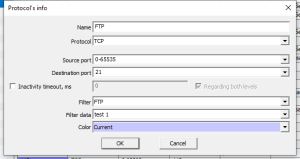
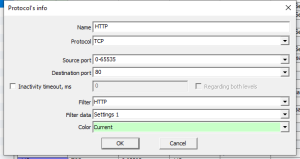
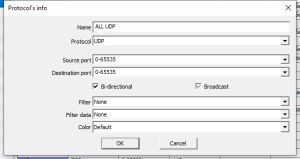
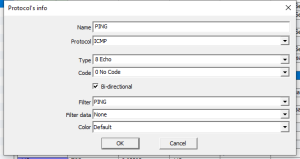
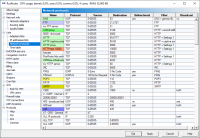
List of network protocols with the following criteria: name, IP protocol, (port-)source, (port-)destination, bidirectional/unidirectional/non-directional (for UDP and PING), filter, filter data, Broadcast.
Protocol filters have been implemented for FTP (both active and passive modes), IRC, PING, HTTP, and PPTP. For HTTP, filter parameters such as caching can be specified.
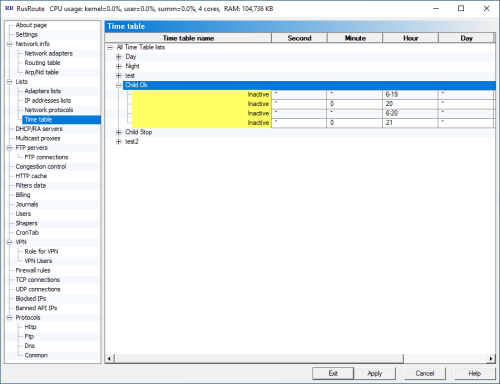
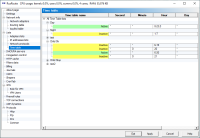
Here you can define time lists to later specify in rule parameters. The corresponding rule will be active only when a connection is established during the specified time period. At other times, the rule will be ignored, but existing connections will remain active.
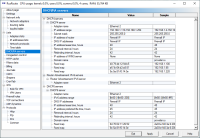
Here you can configure DHCP servers on each adapter, eliminating the need to specify IP addresses and other network parameters on each computer on the local network.
You can also specify a direct mapping between a specific MAC address of a network card and the IP address assigned to it.
The DHCPv6 server is non-standard and does not support DHCPv6 agents, as direct MAC <=> IPv6 mapping uses the DHCPv6 client's MAC address from packets.
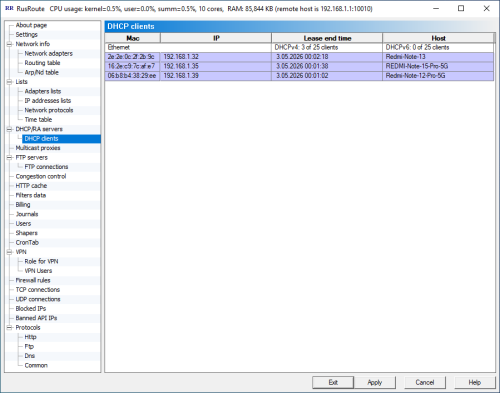
The "DHCP Clients" page consists of a list of devices assigned an IP address by RusRoute firewall DHCP servers. This list displays the main parameters of DHCP client devices: MAC address, IP address, lease expiration time, and hostname. License restrictions apply to the maximum number of supported DHCP clients. Information about the current and maximum available number of DHCP clients is displayed next to the adapter name.
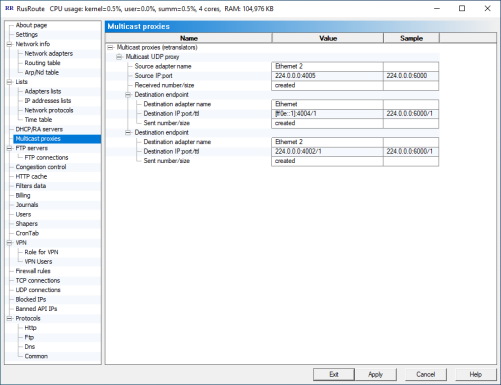
The RusRoute firewall cannot route multicast traffic, but it does have a multicast proxy feature. In this window, you can configure the settings for the UDP multicast packet relay.
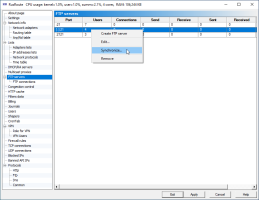
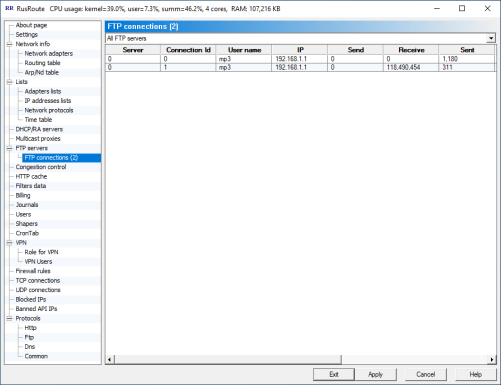
6.7. FTP servers.
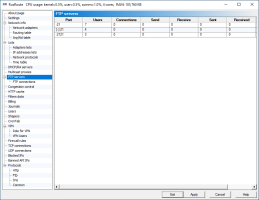
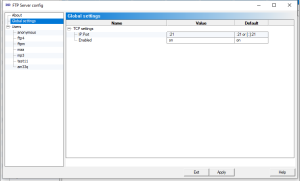
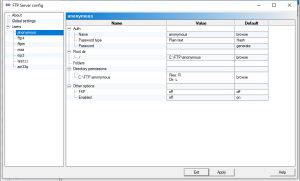
FTP serversFTP port settingsFTP usersFTP users lists synchronization
You can configure multiple FTP servers to run on different ports. Each FTP server can have its own set of users. There is a function for synchronizing user lists between FTP servers.
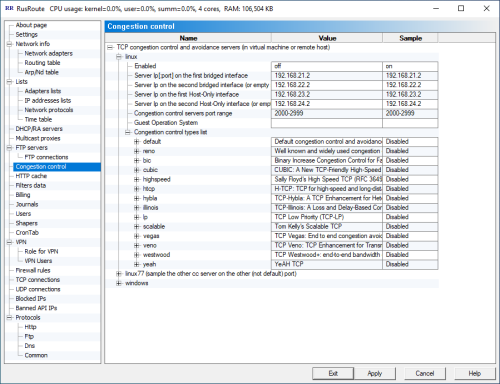
You can configure external TCP servers with different algorithms of TCP transmission control; such algorithms are named TCP congestion control and also avoidance algorithms. The idea and implementation are based on the fact that RusRoute can redirect both incoming and outgoing TCP connections to other IP addresses and ports. If you start virtual machine with the Linux operation system with using freeware VirtualBox 3.0.8 package, for example, http://www.virtualbox.org/ or more powerful and free VMWare Server http://www.vmware.com/ (or set up Linux on the stand alone computer connected to RusRoute firewall server with analogous network connection settings), than redirecting TCP packets (for incoming connections) to the virtual Linux machine at first, which is setting up specific congestion control and avoidance algorithm and makes redirection of that connection data in a client-server sockets application backwards to the IP address of RusRoute, telling IP addresses and port numbers of source and destination in the first 12 bytes of connection (for further identification), than that Linux is the main who is a connection supervisor for incoming connections. The "incoming" means here the primary level of TCP connection (see RusRoute firewall special rules settings for further explanations). A similar way is for outgoing connections: RusRoute firewall is connecting to a Linux server transferring the first block of parameters - IP address and port to connect by Linux application, which will be sent by Linux to using the other network interface to be intercepted and redirected by RusRoute to the real end point address, using simple IP and port substitution. For a successful connection, the Linux server is returning code 0 (4 bytes, word) as the first data, RusRoute is extracting that data and other data are transferred transparently in both directions. If a connection error appears, the server is sending successive 4 bytes - error code, 4 bytes - error message length (must be the less than 512 bytes in current implementation), the error message of the given length, and closing the connection. RusRoute is making TCP Reset reply to initiator of connection which leads to the "Connection refused" reaction, unless the connection was not closed before by time out. The error message is displayed in RusRoute common log window for diagnostics. Client-server application for making such network interconnection is placed in data\cctcp folder of installation, it is distributed as a static binary compiled files for Windows (it is using single stack only) and 32 and 64 bits versions of Linux. In the case you are interesting in you can get cctcp source codes by additional request. You can experiment with the TCP stack substitution by stack of other Windows OS, for example, the TCP stacks of Windows XP and 2003 Server are differed from the new Microsoft TCP stack first introduced in Windows Vista and implemented in Windows Seven and 2008 Server. You can download the latest version of cctcp TCP congestion control program (32 and 64 bits versions) with configs for xubuntu 9.10 from cctcp_static_linux_binaries_32_64.tar.gz location. Conditions of use - as a part of RusRoute distribution in accordance with RusRoute licence agreement. For optimization, simple using and interraction RusRoute with Linux skipping RusRoute driver, I am connecting the virtual machine by two virtual network interfaces. For optimization, simply use and interaction RusRoute with Linux skipping RusRoute driver; I am connecting the virtual machine by two virtual network interfaces.
You can create such network adapters by adding host-only adapter by VMWare virtual networks manager; I am setting fixed MAC addresses for Guest network adapters too. I am un-checking the check box from RusRoute driver network adapter settings for one host-only adapter. The second adapter is created in the same manner, and network interface with default routing to RusRoute IP address is turned up.
The next improvements of work can be achieved by traffic splitting for incoming and outgoing connections to different virtual adapters (for eliminating speed limit of 100 Mbytes/sec divided by two, because the same data is received and sent in both direction usually, and maximum speed can be limited by 1/2 factor). For that you can add one more network adapter for direct data transfer (with RusRoute driver unchecked in the adapter settings) and one more host-only adapter for virtual routing. In this case, you should to create additional routes. For example, we have 2 adapters for direct communication with the names of VMnet1, VMnet2 and VMnet8 (unused), and 2 for routing with the names of VMnet3 and VMnet4, (you can add VMnet5 for local tests).
Then we make the IP address assignment on VMnet1 192.168.21.0/24 : 192.168.21.1 - for RusRoute 192.168.21.2 - for Linux (usual network) On the VMNet2 - 192.168.22.0/24 : 192.168.22.1 - for RusRoute 192.168.22.2 - for Linux (usual network) On the VMnet3 - 192.168.23.0/24 : 192.168.23.1 - for RusRoute 192.168.23.2 - for Linux and routes 1.0.0.0/16 with 192.168.23.1 gateway, 0.0.0.0/0 (default) for 192.168.23.1 gateway (not necessarily required; it’s used in order to set Linux Internet network connections, if they are need) On the VMnet4 - 192.168.24.0/24 : 192.168.24.1 - for RusRoute 192.168.24.2 - for Linux and a route 1.1.0.0/16 to a 192.168.24.1 gateway
Configuration files for my installation of ASPLinux 14 are as follows: /etc/sysconfig/network-scripts/ifcfg-eth0 : # Advanced Micro Devices [AMD> 79c970 [PCnet32 LANCE] DEVICE=eth0 BOOTPROTO=static BROADCAST=192.168.21.255 HWADDR=00:50:56:00:21:02 IPADDR=192.168.21.2 NETMASK=255.255.255.0 NETWORK=192.168.21.0 ONBOOT=yes NM_CONTROLLED=
/etc/sysconfig/network-scripts/route-eth2 : 1.0.0.0/16 via 192.168.23.1 dev eth2 default via 192.168.23.1 dev eth2
/etc/sysconfig/network-scripts/route-eth3 : 1.1.0.0/16 via 192.168.24.1 dev eth3 ubuntu 9.10 network config file for cctcp server addresses 192.168.2*.2 # # /etc/network/interfaces config file for ubuntu for RusRoute tcp congestion control support # auto lo iface lo inet loopback auto eth0 iface eth0 inet static address 192.168.21.2 netmask 255.255.255.0 auto eth1 iface eth1 inet static address 192.168.22.2 netmask 255.255.255.0 auto eth2 iface eth2 inet static address 192.168.23.2 netmask 255.255.255.0 up ip route add 1.0.0.0/16 via 192.168.23.1 up ip route add 0.0.0.0/0 via 192.168.23.1 auto eth3 iface eth3 inet static address 192.168.24.2 netmask 255.255.255.0 up ip route add 1.1.0.0/16 via 192.168.24.1 auto eth4 iface eth4 inet static address 192.168.25.2 netmask 255.255.255.0
/root/cctcp/cclist.xml is supplied with the sources, the template can be generated by command ./cctcp.out -writeconfig /root/cctcp/cctcp (starts the compiled cctcp.out file) : #!/bin/sh cd /root/cctcp /etc/rc.d/init.d/network restart killall -9 cctcp.out ./cctcp.out -system "`uname -a`" >/dev/null & #./cctcp.out 10077 -system "`uname -a`" >/dev/null &
In /etc/rc.d/rc.local I was add the lines setterm -blank 0 /root/cctcp/cctcp You need to start the cctcp.out program compiled with the root access rights for using all of available TCP stack modifications of Linux. The current Linux kernels are supporting the next TCP algorithms: "reno", "bic", "cubic", "highspeed", "htcp", "hybla", "illinois", "lp", "scalable", "vegas", "veno", "westwood", "yeah".
Your network quality is depends on different factors. For example, I observed for a long time the strange effect of a stable but very slow speed (300 KBytes/sec) of receiving data to two computers with Windows 7 RC (both x64 and i386) from computers with Windows XP inside a local area network (i.e. between the different TCP stacks of Windows). The first test using of above technology was recorded a speed up by 19 times to 5700 - 5900 Kbytes/sec. Later, 26 October 2009 I did some new tests and the results were looking modest - 1071 KB/sec (without RusRoute) and 4143 KB/sec with using reno/linux stack. And four days later (30 October 2009) the slowdown was self eliminated but returned later. The tests were done in a network isolated from main network by switching hub 3Com 100 Mbytes/sec full duplex, network cards were working t 100 Mbytes/sec half duplex. Data transfer speed between two Windows XP’ was fast enough. The Windows OS updates weren’t performed those days (26-30 October), with a possible exception of Symantec Antivirus updates on Windows XP computers.
A better option can be using of alternative TCP stacks for interconnecting with the external network such as Internet or between remote filial or buildings of corporate network, or using old stack (XP/2003) conversion for a long distance global networks. The usual using of Linux stacks can give more speed results in the case of using of RusRoute technology too, because of lowering generic network adapter utilization with minimum resource allocation for Guest Linux OS.
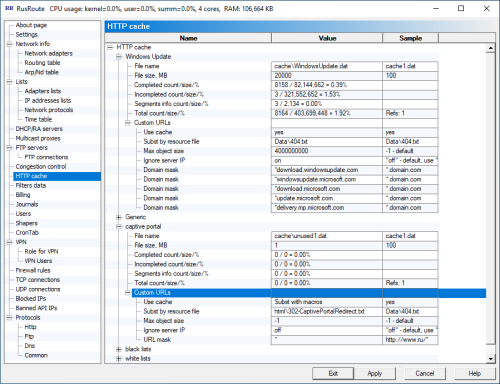
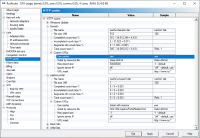
Here you can configure HTTP caches with specific names and sizes to, for example, avoid downloading the same Windows updates from the internet or the contents of pages and images from other servers for each computer. Also, as a response to requests that meet the specified masks, you can replace responses with the contents of your files (it is recommended to specify the HTTP/1.1 header at the beginning of the resource file without the "Connection: " and "Proxy-Connection: " fields, in such a header as the parameters "Content-Length: ", "Last-Modified: ", "Date: ", "Content-Type: " you can specify "%" for automatic parameter detection, use the macros "{URL}", "{Base64Url}", "{HTTPDOMAIN}", "{HTTPURLPATH}", "{FirewallIp}" and some others. If the program does not find the header, it will insert its own header, considering that it is necessary to transfer the specified file in full as a response "HTTP/1.1 200 OK") You can also specify "skip" to proceed to comparison by mask in the next cache or "no" - do not cache this Request.
You can perform certain operations with the cache, such as "Add custom URLs," "Remove incomplete," and "Clear cache." Cache statistics are displayed on the screen. By setting filtered domain names and URL masks, you can restrict access to unwanted and malicious sites (for more information, see 6.16. Rules - HTTP Filtering).
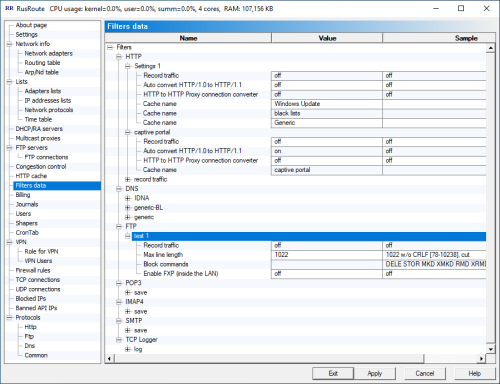
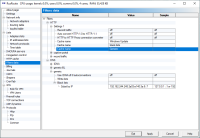
Here you can specify custom parameters for filters with the specified name, for example, the use of HTTP caches and transparent conversion of HTTP connections to HTTP proxy connections (the latter only works when using caches, even with caching disabled).
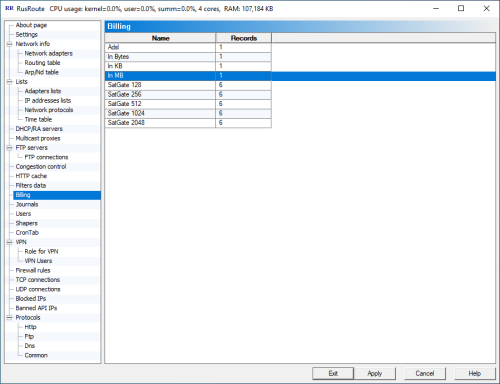
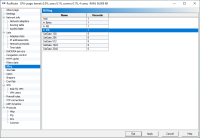
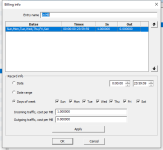
Here you can create and edit various billing schemes, i.e., rules that govern the user's balance. Billing varies by day, day range, and day of the week, with time intervals within those days overlapping.
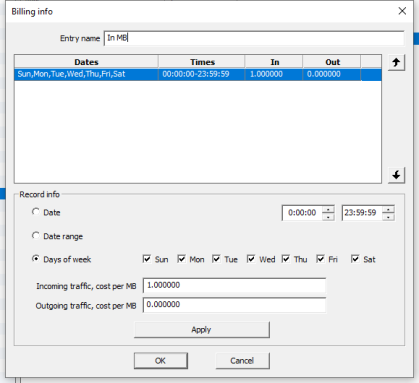
If you set the cost per megabyte of traffic to 1.000, this billing scheme calculates traffic in megabytes with a minus sign; if 1024.000, it calculates traffic in kilobytes; if 1048576.000, it calculates traffic in bytes.
Cost values can be set as negative, in which case traffic is calculated without the minus sign, but the user's minimum allowable balance (at which the user is disconnected) is lost. That makes sense.
Editing billing entries is a bit inconvenient, as you have to remember to click the "Apply" button after making changes.
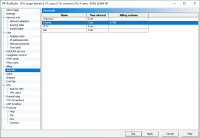
6.12. Journals.
JournalsJournal dates range selectionJournal users selectionJournal selection
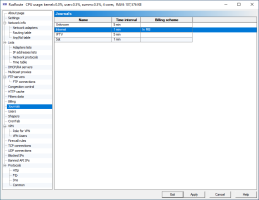
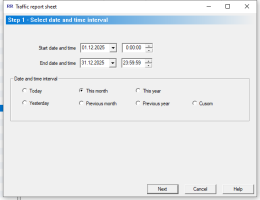
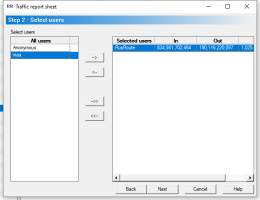
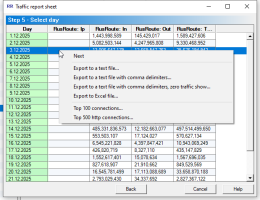
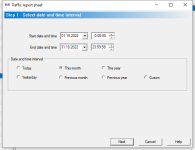
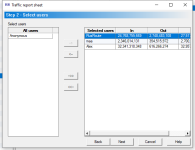
When creating a journal, you specify the journal name, the period for writing information to disk, and the billing scheme.
Since only a specific rule determines whether packet data should be logged, there may be cases where it is unknown which log this information should be logged to (for example, when a packet appears that is not related to any connection). In this case, packet information is written to the "Unknown" journal, if one exists.
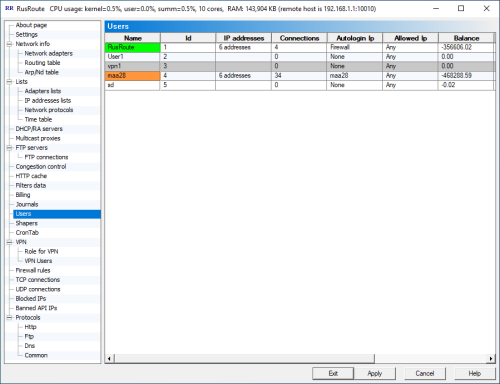
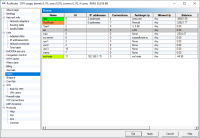
In the main user account list window, you can view a brief description of each user, monitor their activity over time (their name is highlighted), the IP address(es) from which they logged in, and their current balance.
Any user can be disabled (logged out of the system for them). You can also disable all users at once and set balances using a macro (for example, at the beginning of each month).
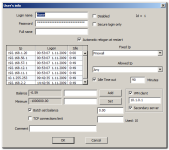
Basic user information consists of their username and password, which they enter to log in. Login is performed through the web interface on port 10000 of the firewall using the http protocol. For example, to log in from a firewall computer, you can use the link http://127.0.0.1:10000, and to log in from computers on a local network, you can use http://192.168.100.1:10000 if the firewall address is 192.168.100.1. In the latter case, it is necessary to allow access from unauthorized user IP addresses to the firewall on port 10000 TCP.
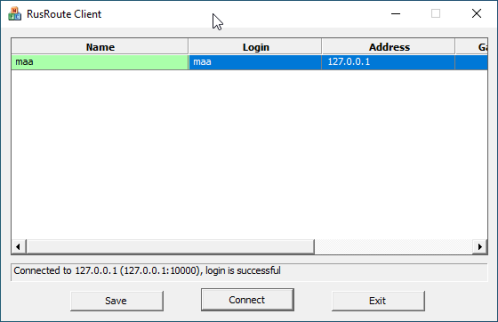
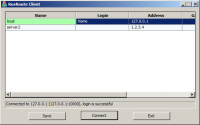
To log in to the RusRoute system, you can use a special Win32 application RRClient.exe.
In this case, a secure login is performed, every 2 minutes RRClient makes a test request to the server to maintain the connection, and in case of inactivity on the part of RRClient.exe for 5 minutes (for example, disconnected the user working from this IP address is disconnected (using the network cable from the client computer). The server can also send a text message to the user on UDP port 10007, which RRClient.exe will display. RRClient must be configured to work with the server. The new entry specifies the server address, port (10000), gateway (optionally, this gateway is set as the default gateway with a metric of 20), and the start page (optional) that opens upon successful login. First, you need to download (update) the keys from the server. The public key generated in the "VPN Role" window is used. RRClient optionally stores the username and password for connecting to the RusRoute server on disk, encoding the data on a key linked to the serial number of the system partition.
Additional user information includes their full name, ID, "Disabled" flag, "Automatic login after restart" flag, fixed IP address(es) from which the user works without entering a password, allowed IP address(es) from which users are allowed to log in via the web interface, maximum idle time (in minutes) after which the user is automatically logged out, the user's current balance, the minimum balance value at which the user is still allowed to work, the option to batch set the balance and its value, the option to limit the number of simultaneous TCP connections, time limits, and a comment.
The user's balance can be increased or decreased by a certain amount by entering it with the + or - sign and clicking the "Add" button.
The minimum balance is set by entering the appropriate value and clicking the "Set" button.
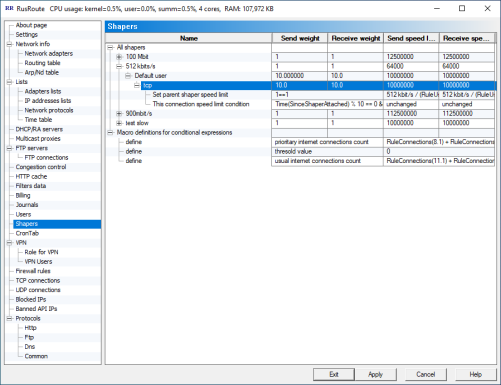
Shapers is an option of the algorithm managing priorities and speeds receiving/transmitting useful data of TCP protocol. It works on a socket layer and does not drop packets or affects connection quality.
Every shaper is described by four parameters: weights and maximal speed limits for transmitting and receiving. The exception is for root shapers for which weights are absent.
Shaper weight is the priority of the current connection or group of connections compared to other connections and group of connections on the same layer.
Maximum speed is a simple speed limit for the connection.
For shaper tuning you need to set up maximum allowed speed limits for root shapers (near to real limits). On the other hand, child shapers for the anonymous default user, selected users and simple sub shapers specify its weights, so you can enter the maximum speeds either by typing simply big values or values of additional restrictions.
In order for the shapers to be active you need to specify their usage in the protocols list while editing particular rules. If you’re using just one shaper for all protocols, you can only use the default shaper. The usual name of shaper shaper in the rule protocol list - <some_name>.user
The speed of a particular connection can be changed dynamically by adding The shaper’s speed limit conditions. The conditions can be defined as an arithmetical expression in the style of C/C++ by using calls for the next functions:
RuleConnections(RuleName) - returns the number of active connections, allowed by a given rule name.
ShaperConnections() - returns the number of active connections, attached to this shaper.
ShaperConnections(recursive) - returns the number of active connections, attached to this shaper and its sub shapers.
Time(Connection/SinceShaperAttached/AllShaperConnectionsRecursive) - returns the time since the connection is established/since shaper is attached (for a conditional jump, for example)/time since shaper is created.
V(Connection/SinceShaperAttached/AllShaperConnectionsRecursive, Send/Recv/Send+Recv, 120s/120m/120h/183d), Traffic() with the same arguments - for obtaining average speed or data transferred size for particular connection since it is established or attached to a shaper, or sum for all connections of given shaper, sending or/and receiving data in a given time interval or for the all period if a parameter is missed. Time can be set in seconds, minutes, hours or days, the maximal allowed data values are given in the above example.
url(InCaseSensitive, "http://*.iso", "*.rar") - the comparison of URL address string of HTTP-request with template mask through symbols '*', '?', where '*' represents an arbitrary number of any symbols (>= 0), '?' - any symbol. The InCaseSensitive parameter is used to compare without taking care of symbol registers.
host("download.maasoftware.*", "rmail.maasoftware.*", "rmail.rusroute.*") is similar to a host name.
false, true - boolean false and true.
break - the equivalent of true but the other shaper conditions are not calculated in this case.
And operators
"(" - Opening parenthesis
")" - Closing parenthesis
"*" - Multiplication
"/" - Division
"%" - Modulus
"+" - Addition
"-" - Subtraction
"<<" - Left shift
">>" - Right shift
"<" - Less than
">" - Greater than
"<=" - Less than or equal to
">=" - Greater than or equal to
"==" - Equality
"!=" - Inequality
"&" - Bitwise AND
"^" - Bitwise exclusive OR
"|" - Bitwise inclusive OR
"&&" - Logical AND
"||" - Logical OR.
with an operator precedent in the order in which they exist in the above mentioned list (standard for C/C++).
Numerical expressions - integer numbers (qword) with the next possible modifications
"B/s", "KB/s", "MB/s", "GB/s", "TB/s" - for speed
"B", "KB", "MB", "GB", "TB" - for traffic volume
"s", "m", "h", "d" - for the time. The time can be given in a union of values without explicitly giving the '+' operator, 2m30s means 2*60+30 seconds for example, and in a form of XX HH:MM:SS - XX days, HH hours, MM minutes, SS seconds, and the first zero parameters can be discarded.
The conditional jumps between shapers and can be used to change parameters of a given shaper (weight, speed limit).
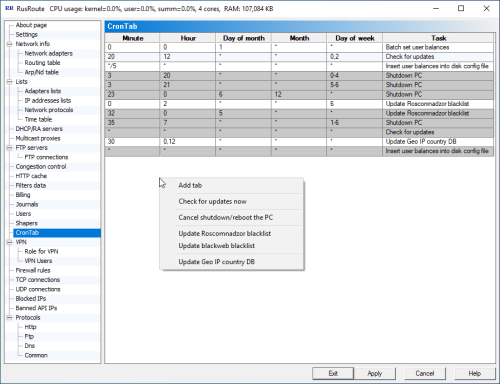
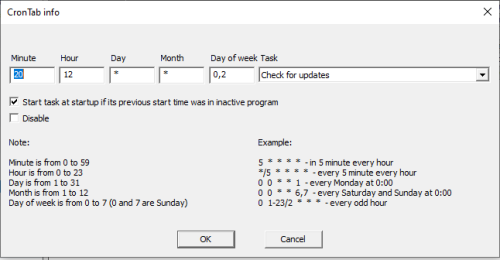
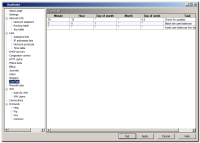
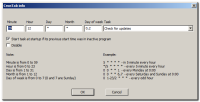
A task schedule is designed to run specific actions in a program at a specific time (periodically, according to a schedule). In Figure 1, you can see how to check for updates, automatically set new balances for users at the beginning of each month, and write updated balances to a file every 5 minutes.
6.16. Firewall Rules.
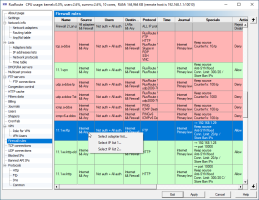
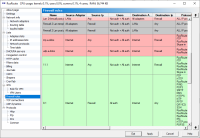
Firewall rules are defined as first-packet passthrough for TCP/bidirectional UDP/ping connections. For unidirectional UDP connections, rules are defined as is, based on packet data criteria, for transmission in both directions. For other IP protocols, such as GRE and IGMP, both rules must be defined for packets to pass in both directions. Without separate rules for GRE, the PPTP filter is not functional.
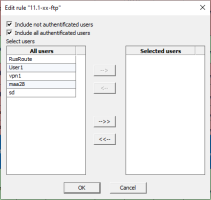
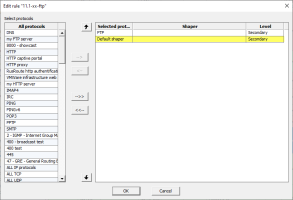
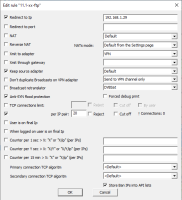
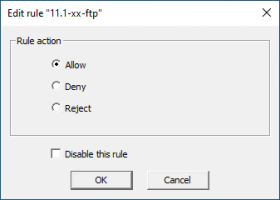
Firewall rulesRule's usersRule's protocolsRule's special settingsRule's action
Firewall Rules are described by
a name
a list for the source adapter
one or two lists for the source IP address
the user
one or two lists for the receiving adapter
a list for the receiving IP address
protocols (with possible specification of a shaper for each protocol)
time
journal
special options
action
additional comment.
The rule can be a splitter to switch between alternatives transmitting packets over multiple routes.
Special options are
the ability to redirect to a specific IP address and port (for example, you can configure the operating systems of client computers to use the RusRoute firewall IP address as a DNS server, and create a rule on the firewall that redirects user DNS requests to the provider's external DNS server),
NAT - IP address translation - a technology that allows users of your local network to work as if they were using a single IP address The address assigned to you by your ISP for internet access. Accordingly, rules describing connections from the local network to the internet should generally have this option enabled. If you use NAT for your local network, it is advisable to use the same technology for connections from the local RusRoute firewall to the internet to avoid port conflicts. In this version, NAT works for TCP (FTP, etc.), UDP, and PING protocols. Standard routing also works for these protocols, as well as for ICMP. For other IP protocols, incoming data, if allowed by the rule, is simply accepted or forwarded by the firewall.
Sending (Xmit) via adapter or gateway - if multiple default routes are used, you can select the adapter or gateway through which packets are sent to the external network. To change the default route path, use Xmit with an adapter and, optionally, a gateway.
Keep source adapter - an auxiliary option, sometimes needed to know which adapter to send response packets through. In some cases, the firewall may ignore this option.
Do not duplicate broadcast packets to the VPN adapter - send only to the VPN channel or send only to the bridged network.
Broadcast packet relay.
Anti-SYN flood protection - blocks attacking incoming packets to establish connections. Blocking parameters are configured in the Settings window.
The limit on the number of simultaneous TCP connections is general and per IP address (applies to all rules with the same name as this rule).
User on destination IP - indicates that the user ID is looked up at the endpoint receiving the packets, not the sender. Useful for local network servers providing their services to the Internet, to avoid user activity timeouts.
When a user is logged in at the destination IP address - the rule is active when the user is logged in at the destination IP address.
Reverse NAT - for a server, such as an FTP server, located within the local network for access from the Internet.
Counters - are triggered when the rule's parameter trigger counter is exceeded for 1 second / Y seconds / 15 minutes (for port protection). If you specify "number/ip", multiple counters will be created based on the key not only of the rule name but also the IP address in the packet.
TCP algorithms for the primary connection (with the connection initiator) and for the secondary connection (with the destination TCP server).
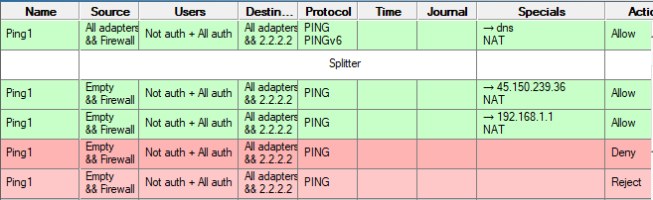
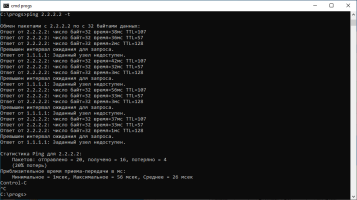
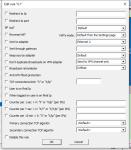
SplitterSplitter for Ping1 To create a splitter, immediately after the branching rule, create a splitter and the required number of additional alternative branching rules (example in the figure) with the same names as the first rule. The first time a branching rule matches, the first rule is selected; the second time, the first alternative, and so on in a cyclical fashion.
HTTP Filtering RusRoute has black filters for filtering unwanted http domains and URLs by mask.
Roskomnadzor block lists are also supported.
You can download blacklists, for example, from the website http://rusroute.com
and unzip them to a directory (e.g., c:\rusroute\blacklists)
Add files to http filters Cache HTTP Cache | Blacklists | Custom URLs | Import domain list files from the selected directory c:\rusroute\blacklists and HTTP Cache | Blacklists | Custom URLs | Import files with URL lists from the selected directory c:\rusroute\blacklists
Do not add files from whitelist directories
with action Replace file with macro replacement http\403-BlockedByFilter.txt or create your own message template file,
enable the Ignore "no-cache" directive option,
enable this type of cache first in HTTP Filter Data (usually for the filter named "Settings 1").
In this case, RusRoute filters HTTP requests.
Memory consumption increases depending on the list size.
Learn more about blocking based on the Roskomnadzor list here.
Also, by redirecting to a local IP address (127.0.0.1) and port, and converting HTTP requests from local network users into HTTP proxy requests, arbitrary contextual HTTP filtering can be implemented by the user's application.
HTTPS filtering is not supported.
6.16.1. Firewall Rule Wizard.
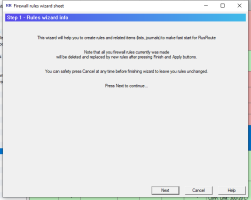
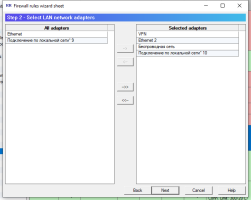
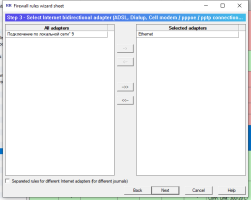
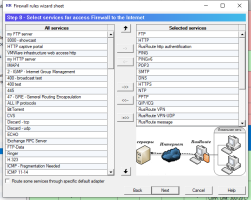
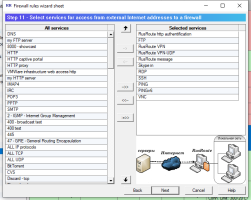
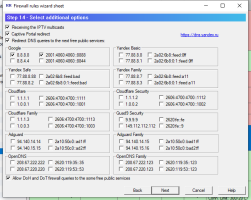
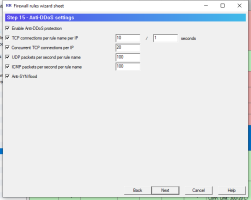
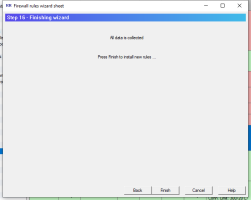
The Rule Wizard guides you step-by-step through configuration questions to create, typically, an initial set of firewall rules.
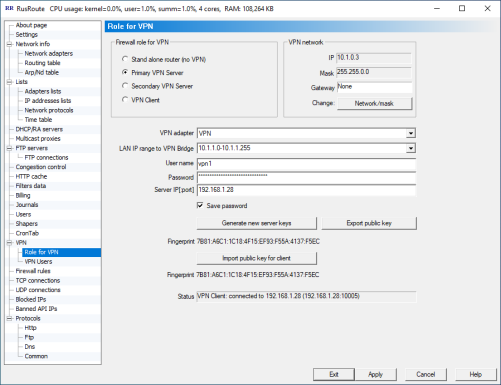
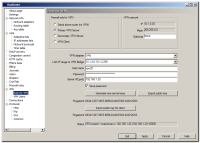
Standalone router (without VPN) - VPN functions are disabled.
Primary VPN server - RusRoute runs a server on this computer on TCP port 10005 and a UDP server on port 10005 to serve VPN clients. To make this computer visible as a VPN user, enter the correct username and password below, and simply enter 127.0.0.1 for the server address for normal mode, or the IP address if you set Local or Global Direct Reception between Clients to "on" on the "VPN Client" section of the "Settings" page.
Secondary VPN server - RusRoute establishes a VPN connection to the primary or another secondary VPN server specified below, with the specified username and password, and starts a server on TCP port 10005 and UDP servers on ports 10005 (VPN server) and 10004 (VPN client) to connect other users through this server (which is called secondary) to the main server. The convenience of using secondary servers is that by connecting two remote branches via a virtual network, a secondary VPN server is launched on the subsidiary. This server distributes the load on the VPN network so that if two VPN users connected to the same secondary VPN server exchange messages, these messages are forwarded directly from one client to the other through their secondary server, bypassing the primary VPN server.
The VPN client—a regular VPN client connected to the primary or secondary VPN server—creates a TCP connection to the VPN server and launches a UDP server on port 10004 to receive packets. A UDP connection is not used if the corresponding option is specified in the "Settings" window ("Use only TCP connection for VPN"). This allows for greater compatibility in some cases, but with this option, the VPN runs significantly slower and the control VPN connection may be overloaded.
VPN network (information received by the VPN adapter using DHCP):
VPN client virtual IP address
VPN network mask.
Gateway - optional. Here you can specify the virtual IP address of a VPN client to use as the default gateway (for example, for remote internet access from another remote network). In this case, to properly access the internet, you may need to configure routes using the route.exe system program or using special options in the RusRoute firewall rules (for VPN connections). See also route /?
Other settings:
VPN adapter - select a VPN adapter from the list. The VPN adapter is added to the system when the RusRoute firewall is installed.
LAN addresses for the VPN bridge - if the VPN adapter is a real Ethernet adapter (not a virtual one) added to the system during the program installation, and this adapter's network uses valid IP addresses (network 10.1.0.0, mask 255.255.0.0), you can specify ranges and lists of IP addresses here that will be available to other VPN clients and their networks as a combination that forms a kind of Ethernet bridge. For example, you can specify 10.1.2.0-10.1.2.255,10.1.1.11 for one VPN client, and 10.1.3.0-10.1.3.255 for another. In this case, IP addresses 10.1.2.0-10.1.2.255 and 10.1.1.11 can exchange data with addresses 10.1.3.0-10.1.3.255, as well as with VPN clients as if they were connected to the same Ethernet segment. To specify the duplication of incoming broadcast packets both to the local VPN client computer and to the connected network, see the "Special" rule settings.
Username - Specify the username for logging into the secure virtual network. Only users who have VPN client or secondary server functionality enabled in their primary VPN server account properties can log in to the VPN network.
Password - The VPN user's password.
Server IP[:port] - The server's IP address or domain name. You can specify the TCP port for the connection after a colon if it differs from the default value of 10005. For a local primary VPN server, we recommend specifying the address 127.0.0.1.
Save password - save the password in the configuration file (in a weakly protected form), otherwise the password is requested upon connection.
Generate new server keys - new keys (public and private) are generated for use in user authorization and for transmitting the user's temporary key to the server. This should be done at least before the initial startup of the primary VPN server. If the key is compromised, stop the primary VPN server (convert it to a standalone server (without VPN)), generate keys, and restart the VPN server. There is no need to generate keys for VPN clients.
Exporting/importing a public key may be the most secure way to transfer the public key from the server to the client (assuming you trust the courier or other method of further key transfer). You can verify keys using their fingerprint.
Status - a status bar displaying the progress of connecting to the server or key generation.
Temporary keys for VPN conversion users are updated every 15 minutes.
A UDP-based VPN establishes a connection to TCP port 10005 (the "RusRoute VPN" protocol) to exchange keys and other service information, and packets are transmitted to UDP port 10004 (client) or 10005 (servers) (the "RusRoute VPN-UDP" protocol). In the "RusRoute VPN-UDP" protocol properties, specify "Bidirectional" if NAT is used, and leave it unspecified otherwise to avoid conflicts with the rule hash. You may need to use both protocols, "Bidirectional" and non-"Bidirectional," for connections from/to the Internet and from/to the LAN.
A TCP-based VPN establishes a connection only to TCP port 10005 (the "RusRoute VPN" protocol) for key exchange, packet transfer, and other service information.
The FTP transfer speed over VPN is approximately 300 Mbps between two I7-7700K class PCs with Windows 10 x64 22H2, RusRoute version 3.3.9, driver v.3.38-220, in a Gigabit Ethernet local area network.
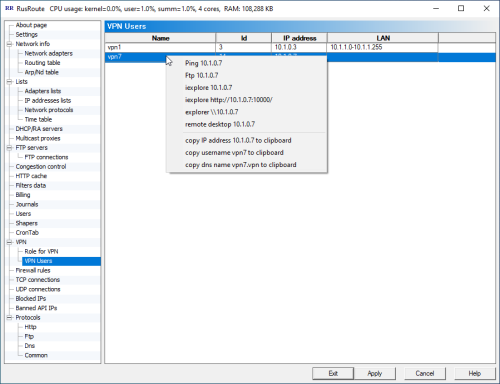
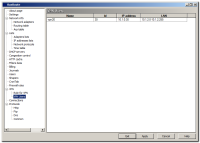
This displays a list of all connected VPN users and offers the most common actions that can be performed on them by accessing their IP addresses: ping, FTP, browsing with Internet Explorer and Explorer, remote desktop viewing, copying the IP address, name, and DNS name to the clipboard. If a DNS filter is used for the DNS protocol, VPN users can be accessed by their pseudo-DNS name, such as name.vpn. The RusRoute server will respond to a DNS request for this name, substituting the IP address used.
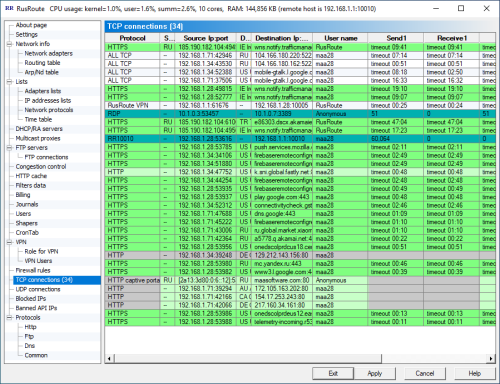
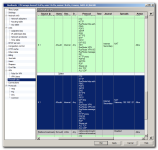
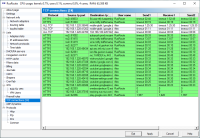
TCP connections are displayed with their parameters, such as protocol, address, port, user name, receive/send speed at the primary (1) and secondary (2) levels, the size of the transferred data, and the rule name.
You can apply filters in this window, disconnect connections, and etc.
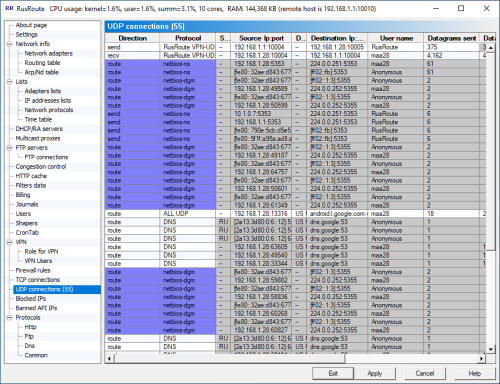
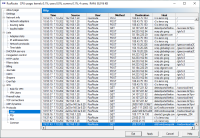
Displays dynamic UDP rule connections with their parameters, such as protocol, address, port, username, number of packets, transferred data size, and rule name.
You can apply filters in this window, terminate connections, etc.
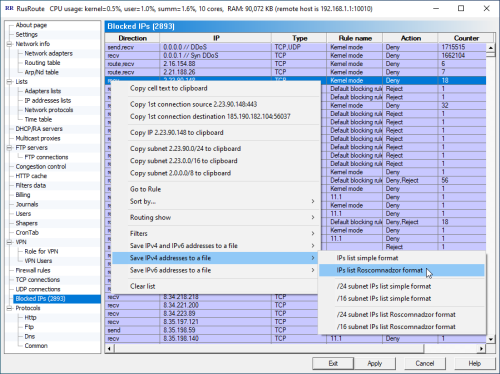
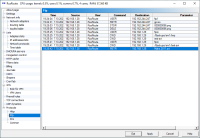
Blocked IP addresses are displayed, including those blocked by anti-(D)DoS protection. When anti-DDoS protection is running, multiple attack addresses are collapsed into 0.0.0.0 and ::0 to reduce the amount of data processed, and into 0.0.0.1 and ::1 for anti-SYN DDoS.
You can apply filters and save address lists to a file in this window.
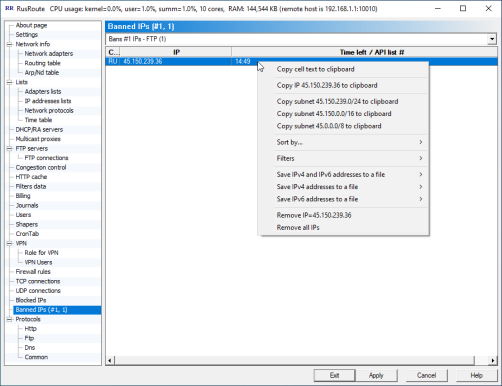
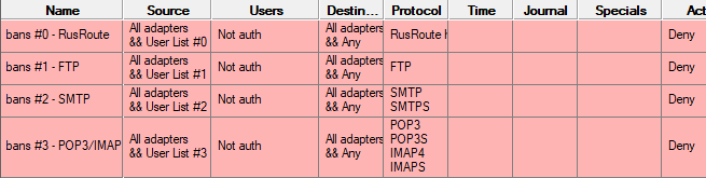
The RusRoute firewall has the ability to maintain lists of banned IP addresses for application-level filters by accessing specific URLs. For example, after five requests to the address http://127.0.0.1:10000/api.cgi?api_key=KEY&cmd=IpListAddEx&n=13&ip=192.168.1.111 , IP 192.168.1.111 will be added to the 13th list of blocked addresses for 15 minutes. And when accessing http://127.0.0.1:10000/api.cgi?api_key=KEY&cmd=IpListAdd&n=13&ip=192.168.1.111&to=60, IP 192.168.1.111 will be added to the 13th list of blocked addresses for 1 minute immediately. For some protocols, such as RusRoute HTTP authentication, FTP, SMTP, and POP3/IMAP, built-in addition of blocked IP addresses to lists is implemented. For other protocols, as well as for the SSL protocol variants mentioned above, you need to parse your server logs with a specialized utility and, if authentication errors occur, call the lists API function (to block new connections from the attacker's IP after the fifth attempt to guess the password).
List visualization features are available, as well as the ability to remove addresses from the list, save the list to a file, clear the list, and more.
6.22. Logs.
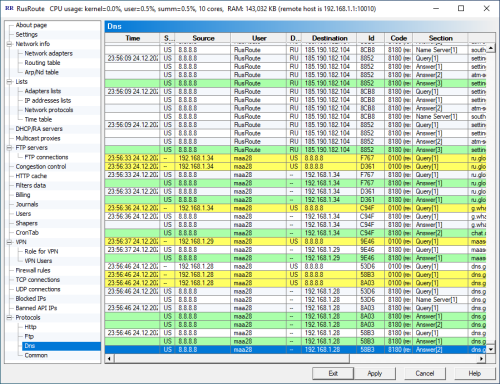
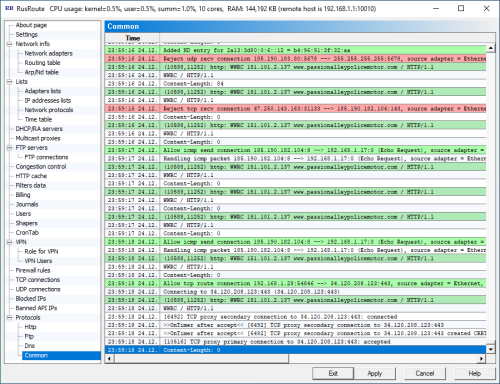
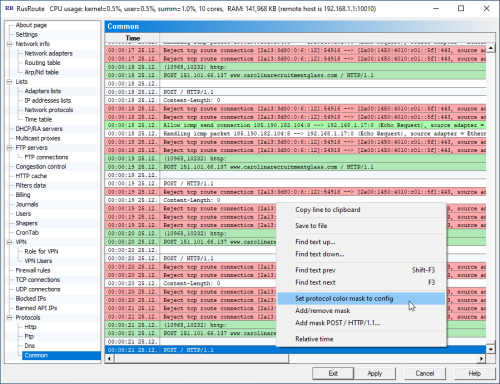
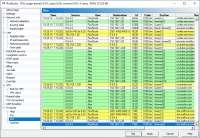
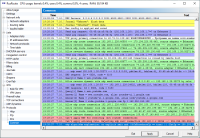
The most important and interesting logs of processes occurring in the network and inside the RusRoute firewall.
Messages are displayed primarily in English. For example, the message "Reject ... connection ... by rule: Default blocking rule, protocol: Unknown" means that your firewall rules, when scanning from the first rule to the last, did not find a rule that matches this connection, resulting in this packet/connection being blocked.
7. Web API.
Some program parameters can be set via HTTP requests to the built-in web server running on port 10000. To access these API functions, use the key specified on the "Settings" page.




 Video
Video